
Learn how to register products, follow takedown progress, and save reports. Start at the beginning if you are new, or use the contents to find a specific task.
Your first three steps
Screenshots use fictional products, subscriptions, and URLs. Select an image to view it at full size.
01 · Getting started
Set up your account
- Create an account with your email address and password. If you already have an account, sign in.
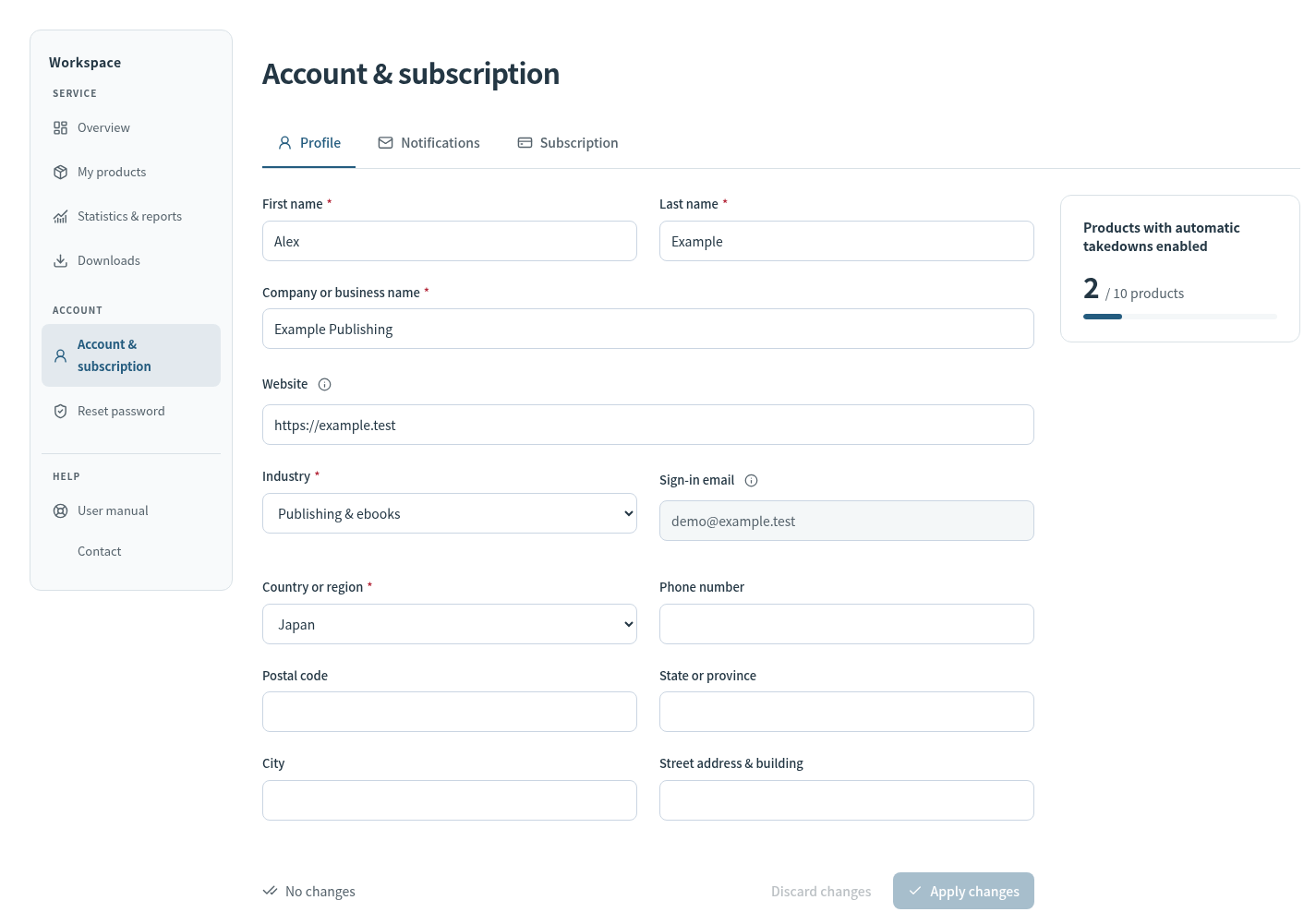
- In the workspace, open “Account & subscription.” Enter your name, company, and other required details under “Profile,” then select “Save changes.”
- Under “Notifications,” choose whether to receive copies of DMCA notices and check the recipient address. Save changes separately in each tab.
- Under “Subscription,” check the expiry date, product allowance, and search frequency. Registering products requires available subscription capacity.
02 · Product registration
Register one product
Open “My products” in the left menu and select “Register a product.” Enter information about the legitimate product you want to protect. Use “Submit URLs,” described below, for infringing URLs.
- Product name
- Enter the full product name. Japanese and other non-English names are supported. The limit is 512 characters.
- Product URL
-
Provide a legitimate product page or sales page that identifies the work. The URL must
begin with
http://orhttps://. - Copyright holder
- Enter the name of the product’s copyright holder, up to 256 characters.
- Category
- Choose the appropriate category: video, books and magazines, music, software, or doujin works.
- Related and excluded keywords
- Optionally add alternate titles, translated names, product identifiers, or terms that distinguish unrelated works. Each field allows up to 512 characters. You can also check search keywords in the product details after registration.
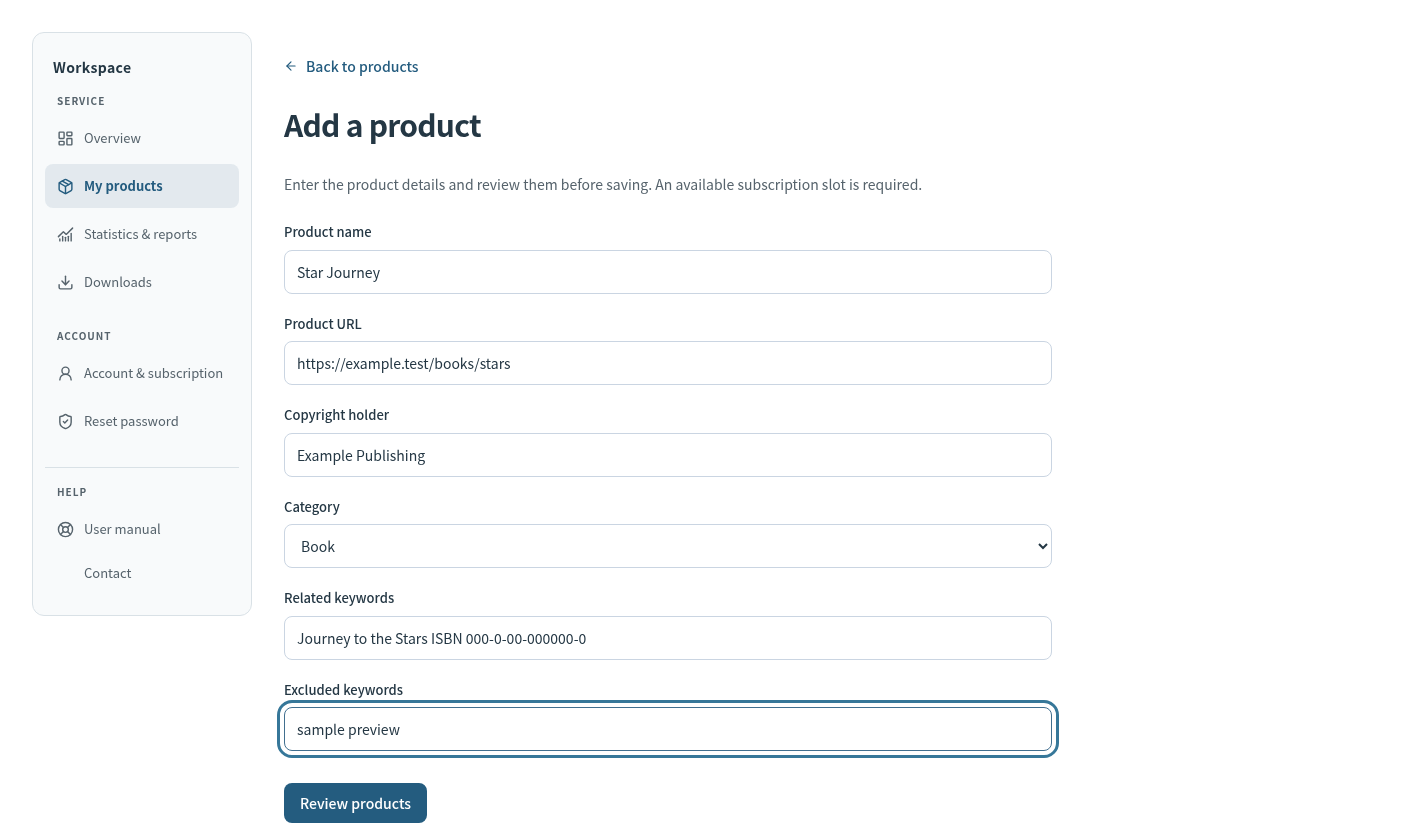
- Complete the fields and select “Review details.”
- Read the review screen. Select “Back to editing” if you need to make corrections.
- Select “Register this product.” The product details open after registration; check the information and automatic takedown status.
If a field is invalid, correct it and review again. For subscription capacity errors, check which products have automatic takedown enabled and review your subscription.
03 · Bulk registration
Add products from Excel
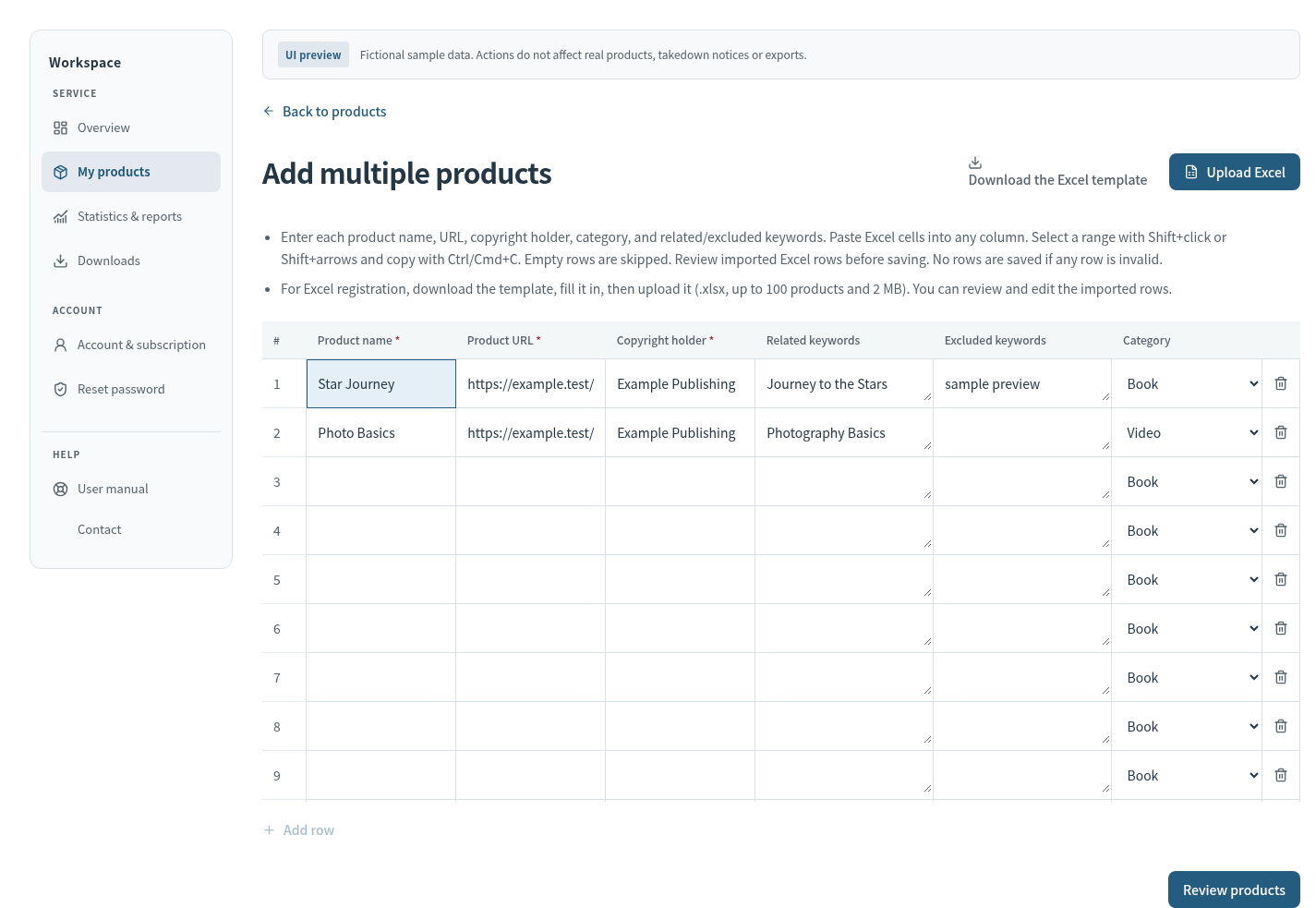
From My products, open “Add multiple products” to display a table with 100 rows. You can register up to 100 products at once, subject to available subscription capacity. Choose either of these input methods.
Copy and paste from Excel
- Arrange Excel columns in this order: Product name → Product URL → Copyright holder → Related keywords → Excluded keywords → Category. Leave the header row out of your selection.
- Copy the cells, select the first destination cell in the web table, and press Ctrl/⌘ + V. You can also paste a single column or start partway across a row.
- For categories, use the same names as the dropdown options. Check each product after pasting.
To select a range in the web table, use Shift + click or Shift + arrow keys. Copy it back to Excel with Ctrl/⌘ + C. Related and excluded keyword cells support line breaks.
Upload an Excel workbook
- Select “Download the Excel template.”
- Keep the column headings and their order unchanged. Enter products from row 2 of the Products sheet. Use the category dropdown and enter text and URLs as values, not formulas.
-
Select “Upload Excel” and choose the workbook. The supported format is
.xlsx, with up to 100 products and a 2 MB file limit. Importing replaces the rows currently in the web table. - Check and edit the imported rows, then select “Review products” followed by “Add products.”
04 · Product management
Manage automatic takedown
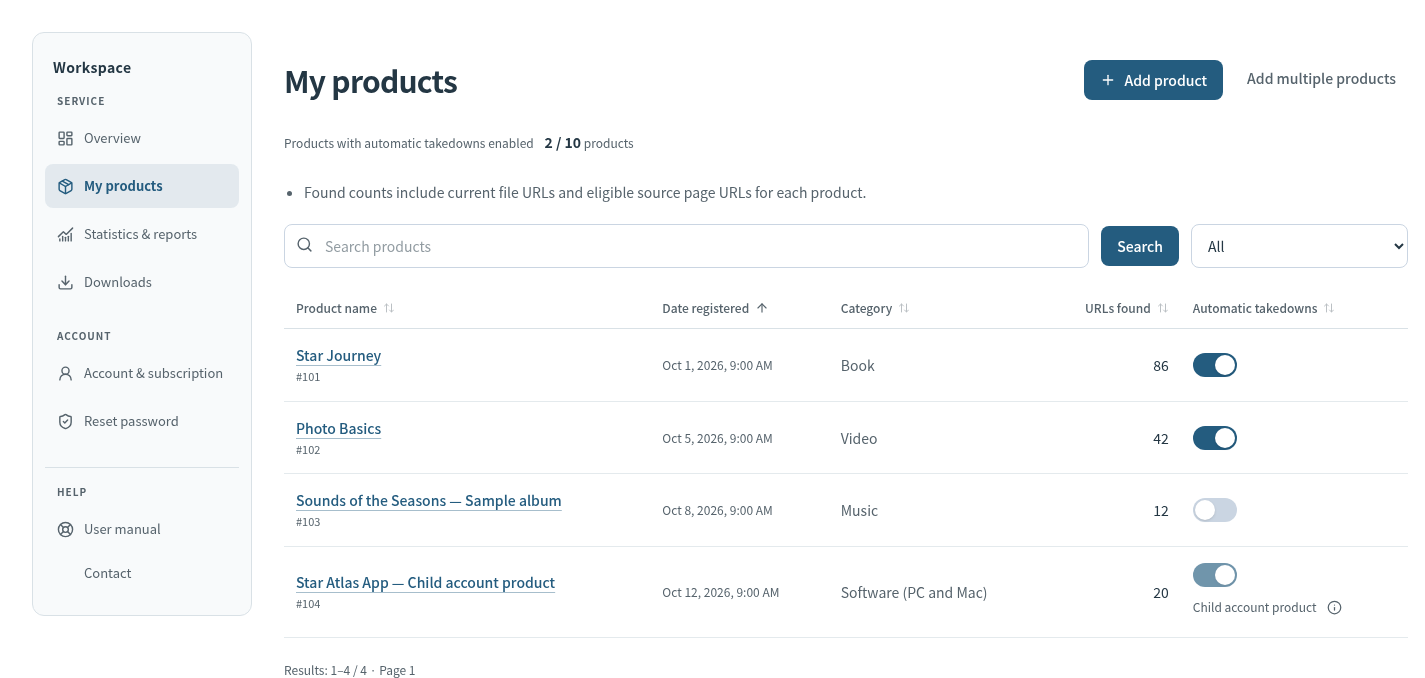
In “My products,” search by product name or filter by automatic takedown status. Select a column heading to change the sort order. Products are shown 100 per page. Select a product name to open its details.
Switch protection to a different product
- Find the product you want to stop protecting and turn automatic takedown off.
- Register the replacement product, or enable automatic takedown for an existing product.
- Check the updated status and subscription capacity.
A product marked “Child account product” cannot be switched from the parent account. Sign in to the account that owns it. If you have no available capacity or the subscription has expired, check “Account & subscription.”
Edit or delete a product
For a product you own, select “Edit product” in its details to change the URL, copyright holder, category, and related or excluded keywords. The product name cannot be changed on this editing screen. Before deleting, verify the product name in the confirmation message. For a temporary pause, turn automatic takedown off instead of deleting the product.
05 · Progress
Check takedown progress
“Overview” shows the status of discovered URLs and discovery activity over the last 30 days. Sending a notice and confirming removal happen at different times. Registering a product or submitting a URL does not make every result appear immediately.
- Awaiting notice
- URLs waiting for a takedown notice. Check the list’s notes for conditions such as an expired product subscription.
- Notified · awaiting check
- URLs for which a notice has been sent, with removal still awaiting confirmation. A sent notice alone does not establish that the file has been removed.
- Removal confirmed
- URLs whose removal has been confirmed by a check. The overview’s confirmed removal rate is the proportion of the displayed total in this state.
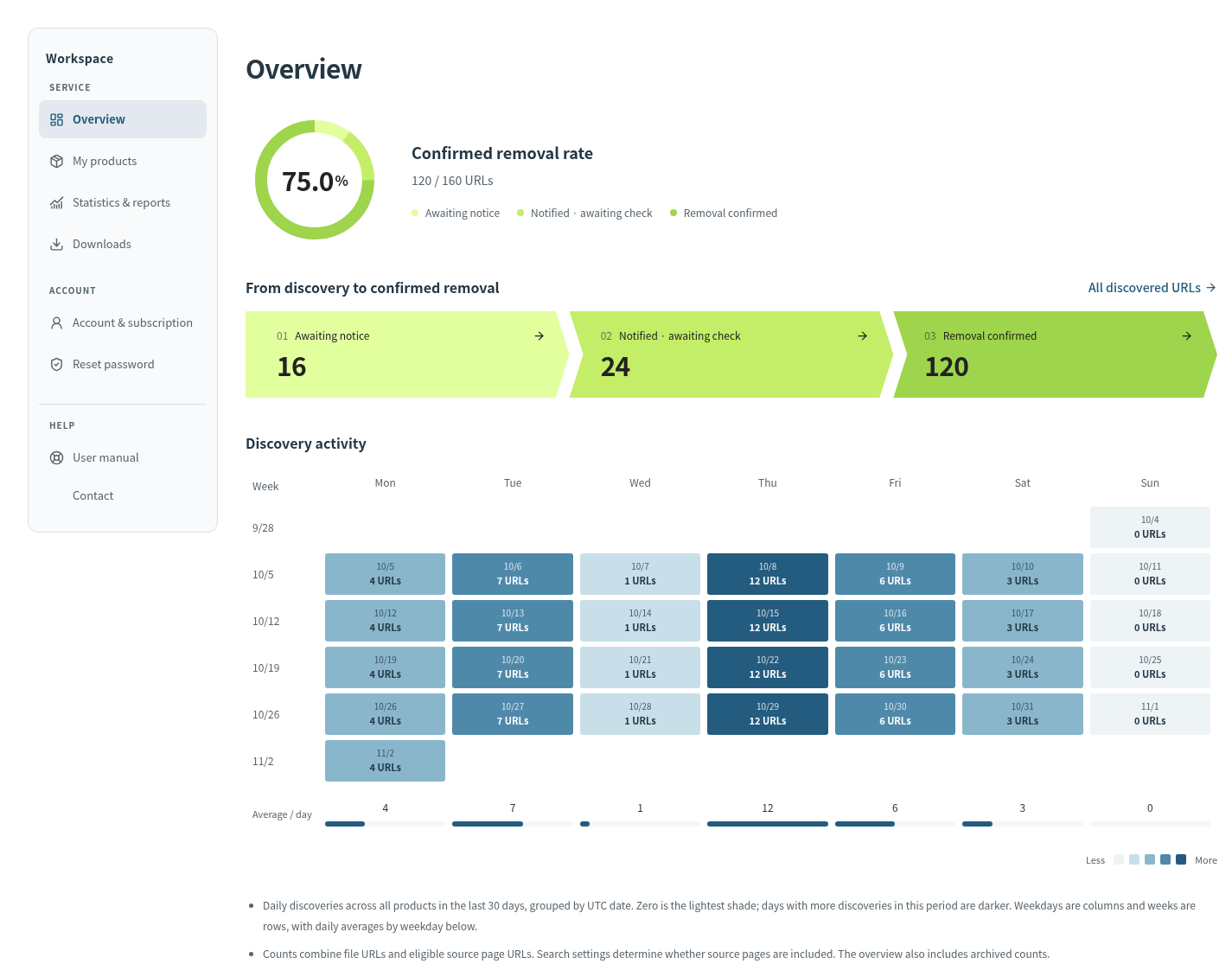
Counts include file URLs and eligible source-page URLs. Overview also includes archived historical counts. Its scope differs from a product’s current URL counts and statistics for a selected date range.
Discovery activity colors indicate daily counts within the displayed period: darker means more discoveries, not a higher removal success rate. Overview covers all products; the “Discovery activity” tab in a product’s details covers that product alone. Daily counts use UTC dates.
06 · Manual URL submission
Submit URLs you have found
Associate infringing file URLs or reported source pages with the relevant product.
- Open the product from “My products,” then select its “Submit URLs” tab.
-
Enter one URL per line, beginning with
http://orhttps://. You can submit up to 20 URLs at once. - Check the selected product and URLs, then select “Submit URLs.”
- Check the message for submitted and duplicate counts, and review “Submission history” below.
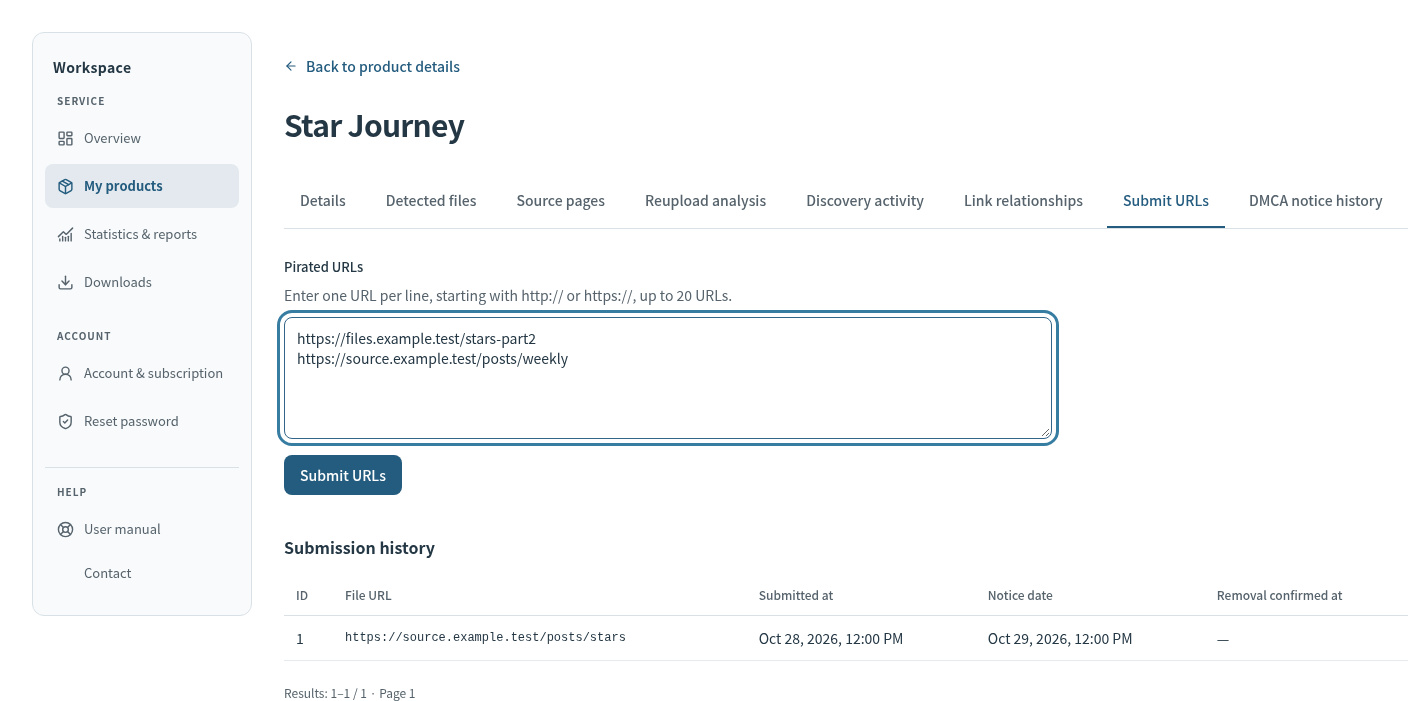
You can submit a direct file link or a page that publishes such links. Source pages are processed for link extraction. Submission starts processing; it does not guarantee an immediate notice or completed removal. Check results in Overview and the product-specific lists.
07 · Product investigation
Investigate a product
Use the tabs in the product details to choose the information you need.
- Detected files and Source pages
- Check discovered file URLs and the pages that link to them.
- Reupload analysis
- Review frequency and intervals by domain to investigate repeated publication.
- Discovery activity
- See daily discoveries for this product over the last 30 days.
- Link relations
- See connections between source pages and file URLs, including multiple pages linking to the same file.
- DMCA history
- Check the target URL, recipient, and notice date. Check removal confirmation separately from notice history.
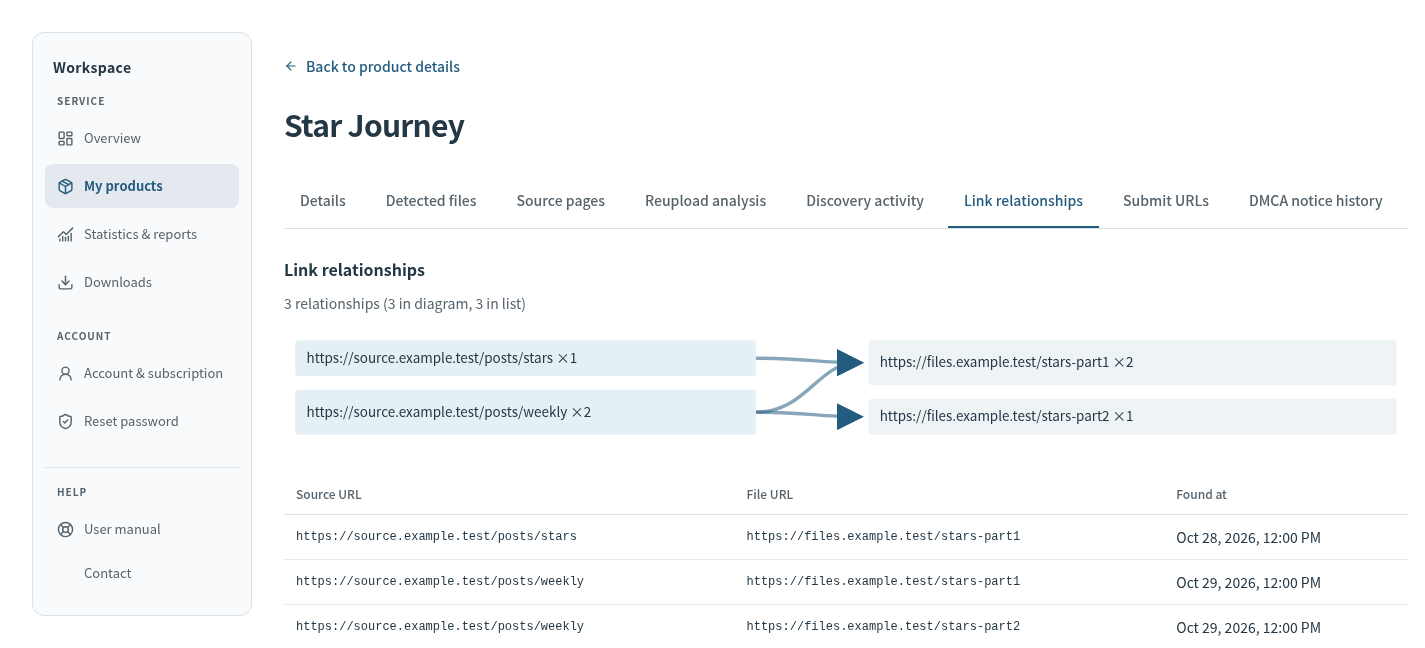
The diagram has a display limit. Check the table below it and the count information on the screen as well. Scroll within long tables to read URLs and columns.
08 · Reports and exports
View statistics and save CSVs
In “Statistics & reports,” choose Products, Cyberlockers, Link sources, or DMCAs. Set the start and end dates to review the period you need. Date ranges use Japan Standard Time; the end date is excluded.
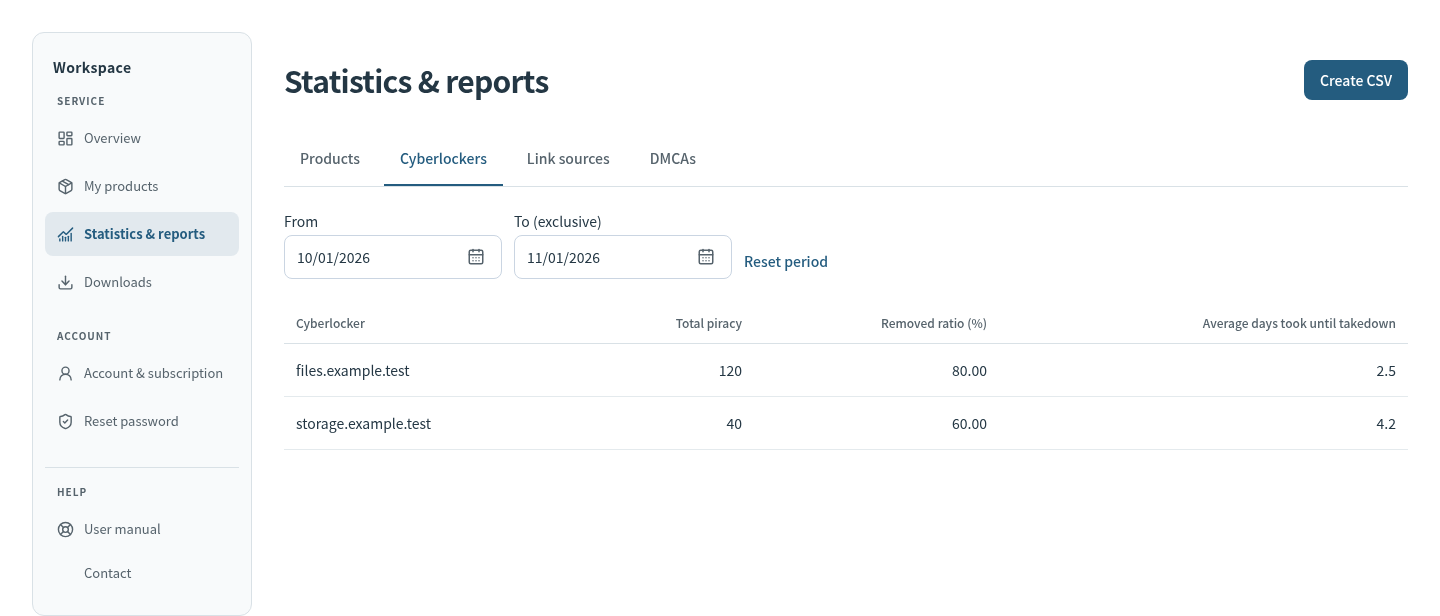
- Select the required filters in a statistics screen or an Awaiting notice, Notified, or Removal confirmed list.
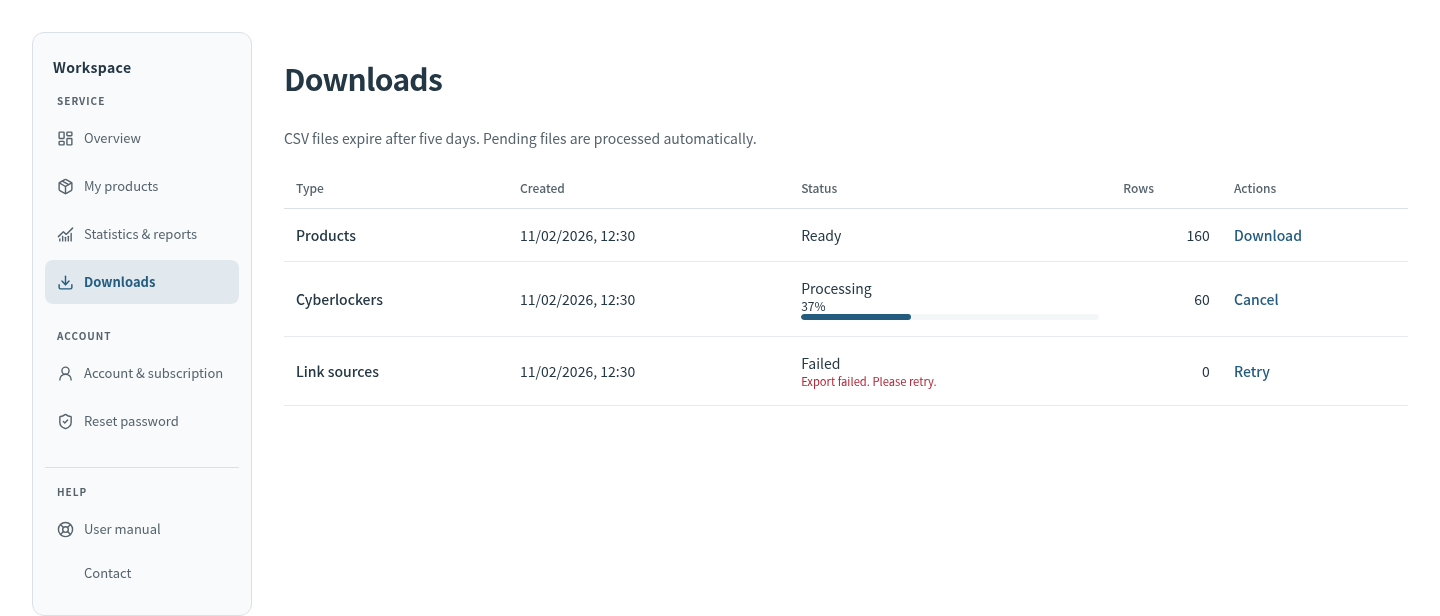
- Select “Create CSV.” You will be taken to “Downloads.”
- Follow the progress while the file is being created. When it is ready, select “Download” in its row.
09 · Help
Troubleshooting
I cannot register a product or enable automatic takedown
Check required fields, the product URL format, your subscription expiry date, and available capacity. Manage child-account products from the account that owns them. In bulk registration, also check partially completed rows.
I registered a product, but discovery counts have not increased
Check automatic takedown status and your subscription’s search frequency. Search, crawling, and aggregation are not immediate. Check the product’s search keywords and discovery activity. If you already know an infringing URL, use Submit URLs.
A notice was sent, but removal has not been confirmed
Notification and removal confirmation are separate stages. Check the target URL and date in DMCA history. Response and confirmation times vary by recipient and other conditions.
I forgot my password or my session expired
Sign in again. If you do not know your password, start with Reset password.
A page will not load or a CSV export failed
Check that you are signed in and reload the page. For export failures, check the reason shown in Downloads and try Retry. If the issue persists, tell us the error message and the action that triggered it.
Still need help? Contact us with the product name, relevant URL, screen, and error message. Do not send your password.